BASEBALL STATS TRACKER
Guide

Track every game,
all in one place

From game day to practice, capture every stat, analyze your performance, and keep your season organized.

πŸ“ˆ
Log Games Track every at-bat,
pitch, and play.
πŸ“Š
Analyze See stats and
spot trends.
β†—
Improve Focus on what matters
every day.
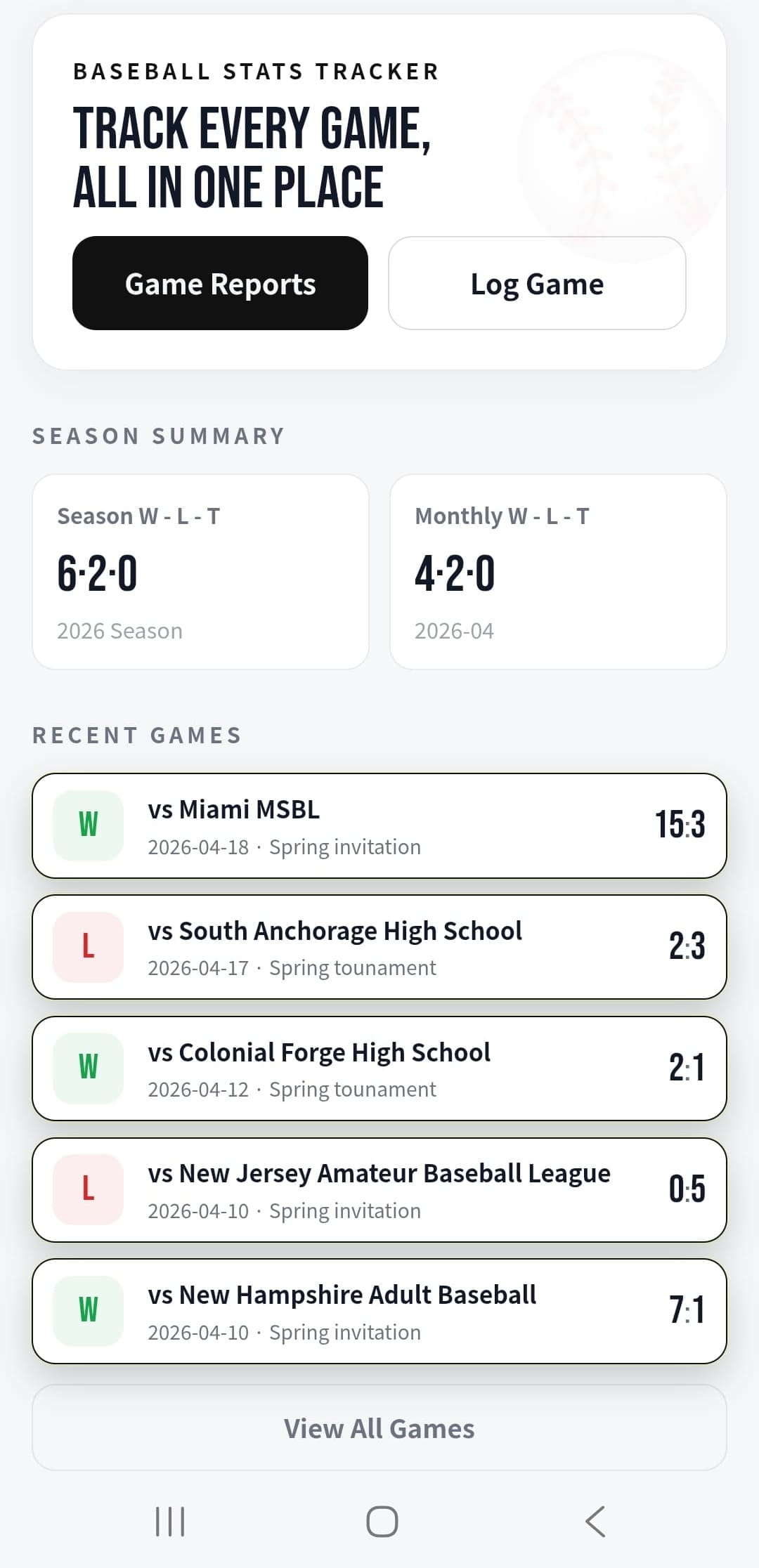
INNING LOG home guide screen
Home
1

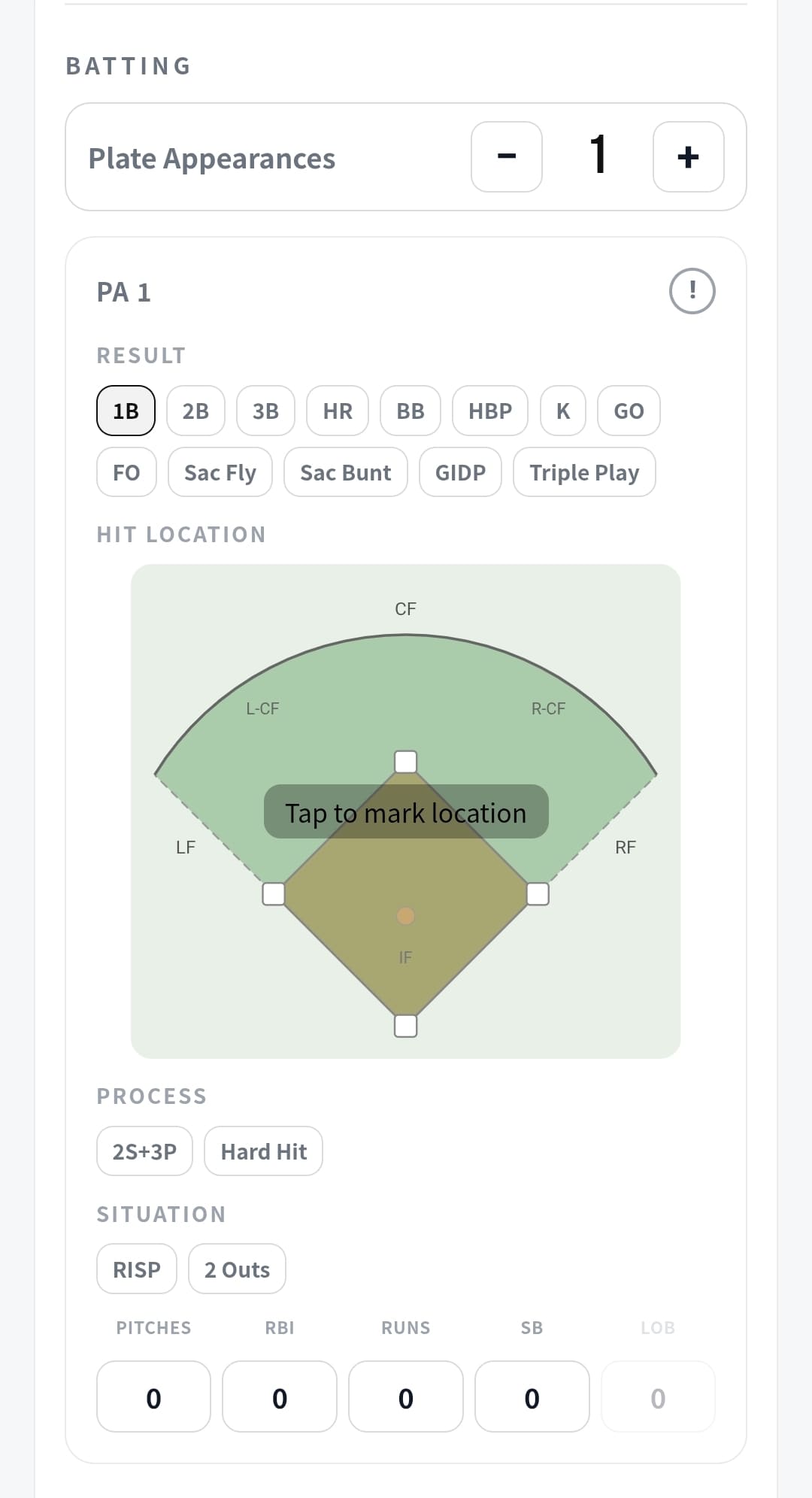
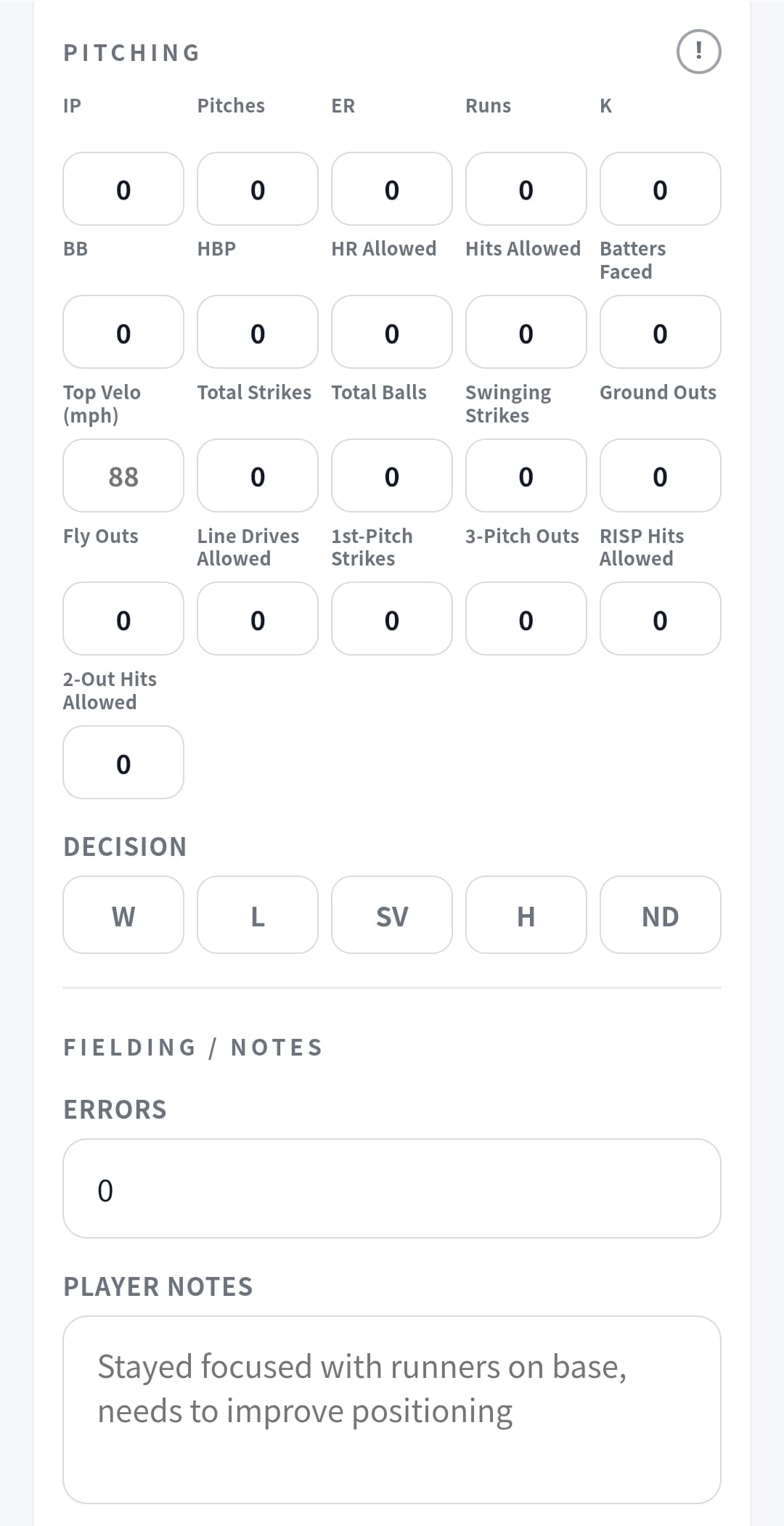
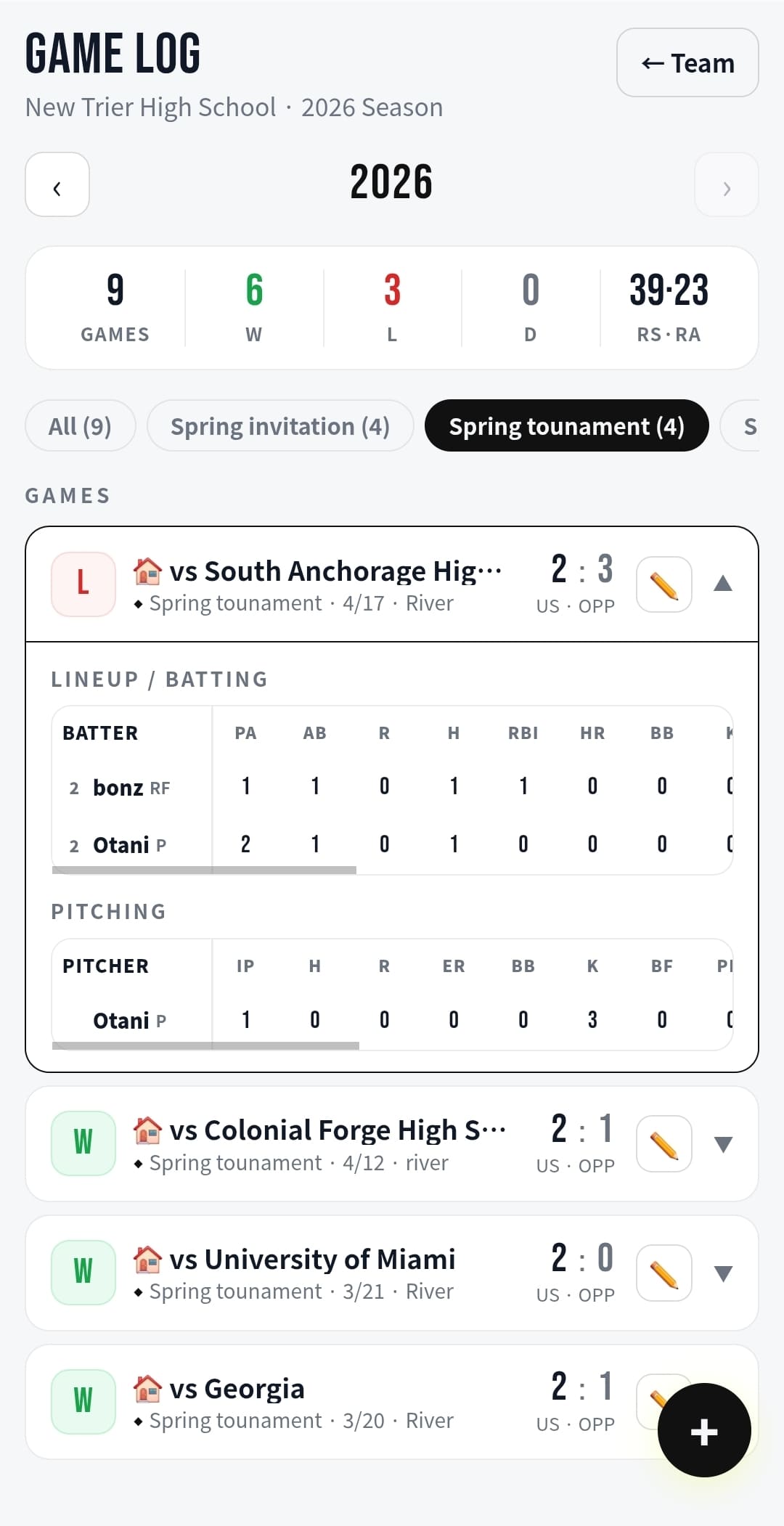
Log every game clearly

Record batting results, pitching stats, fielding notes, and hit locations in one game entry flow.

✏️
Batting resultsHits, outs, walks,
RBI, and runs.
⚾
Pitching statsIP, pitches, K,
BB, and decision.
πŸ“
Hit locationMark spray chart
and add notes.
Game batting input
Batting
Game pitching input
Pitching
2

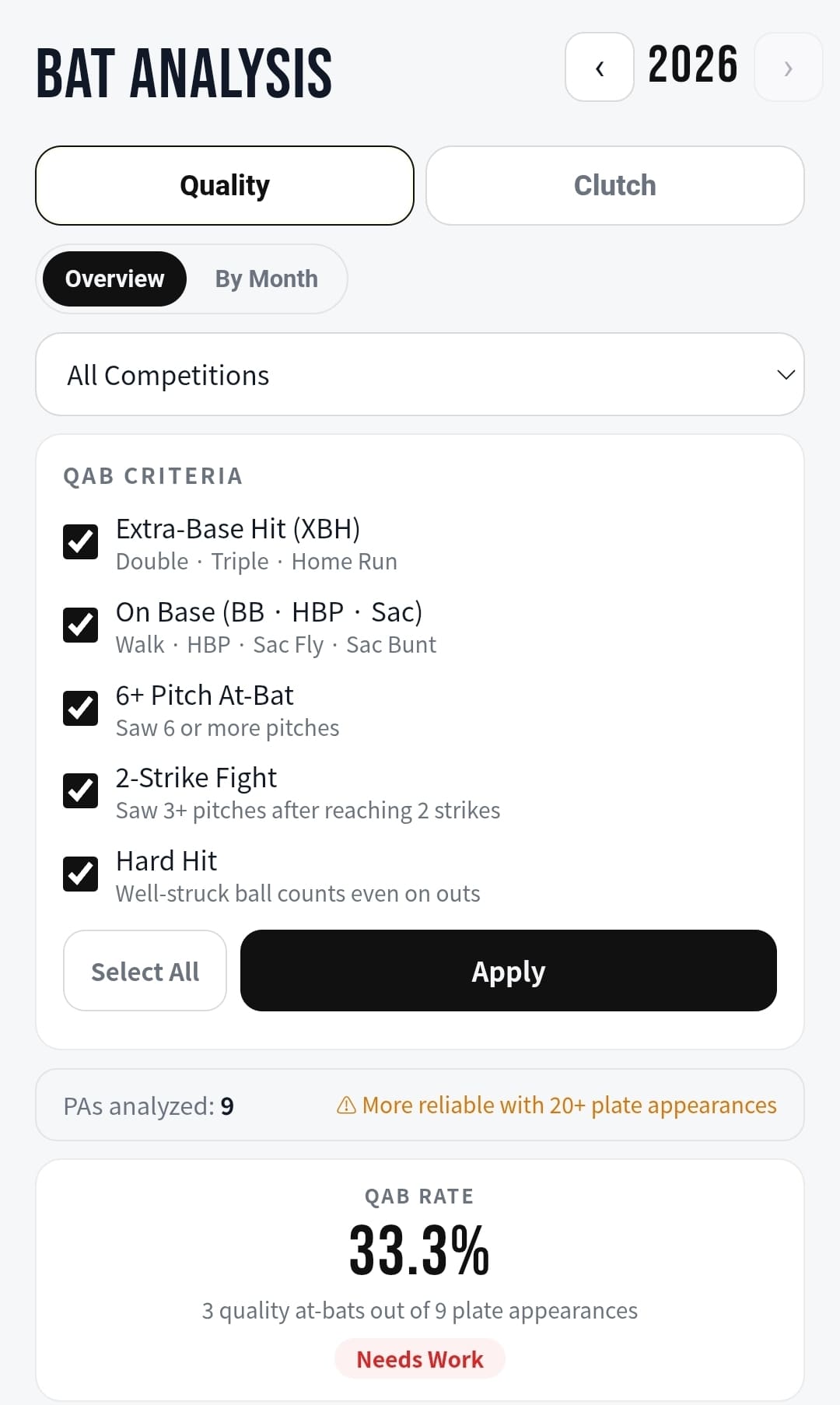
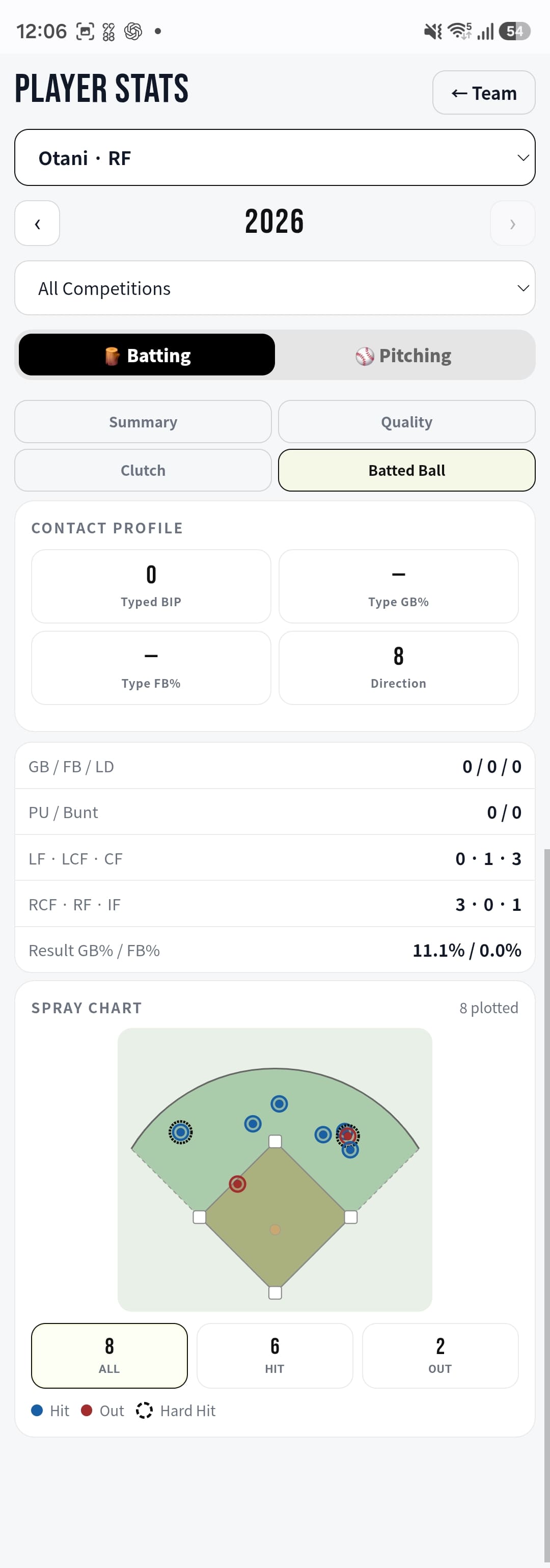
Turn records into insights

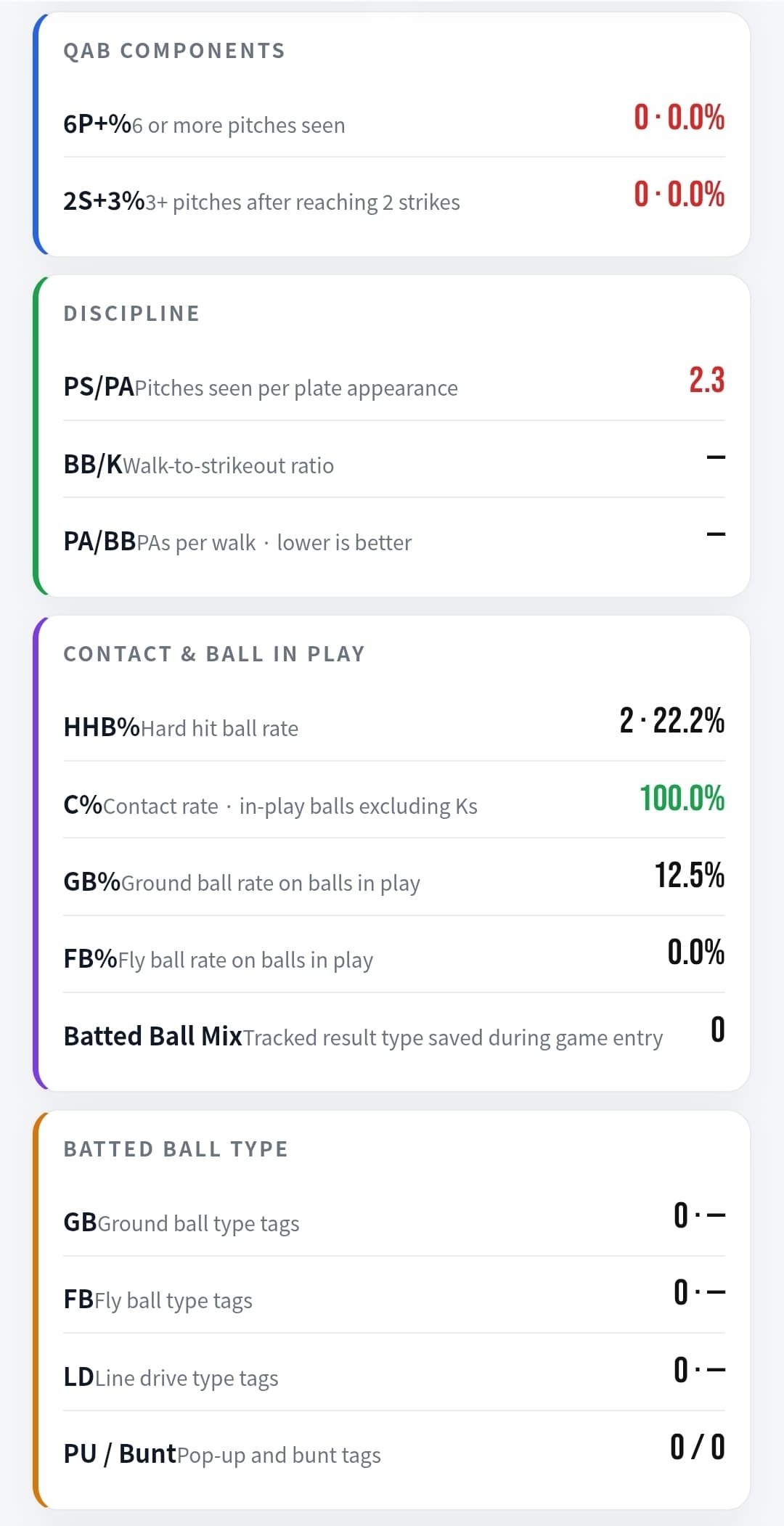
Review quality-at-bat trends, pitching quality, command, contact profile, and advanced metrics.

🏏
Bat AnalysisQAB, clutch,
spray chart.
🎯
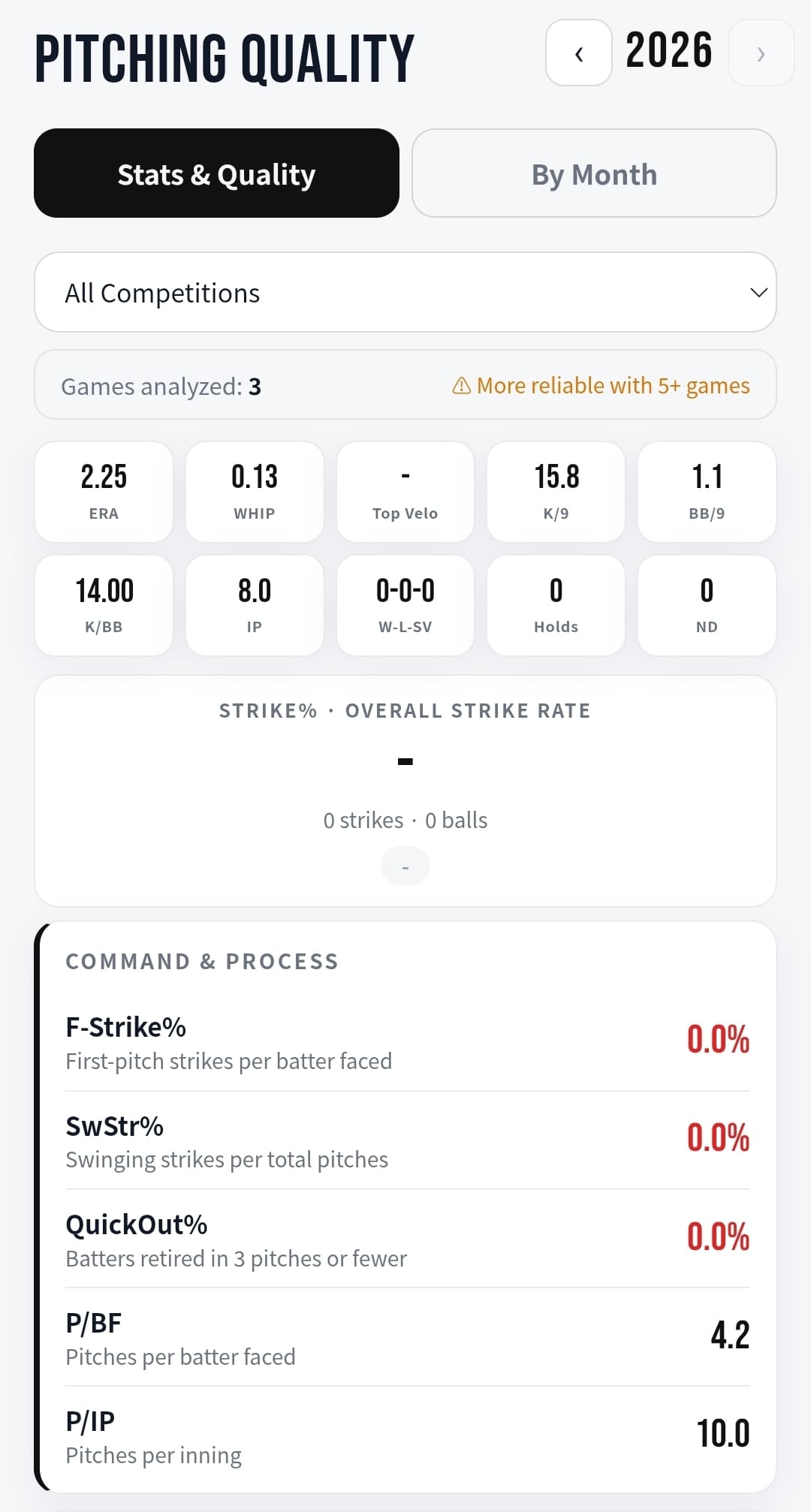
Pitching QualityStrike rate,
command, K/BB.
πŸ“Š
Advanced MetricsOPS, WHIP,
contact profile.
Batting analysis
Bat Analysis
Pitching quality
Pitching Quality
Advanced metrics
Advanced Metrics
3

Build your routine

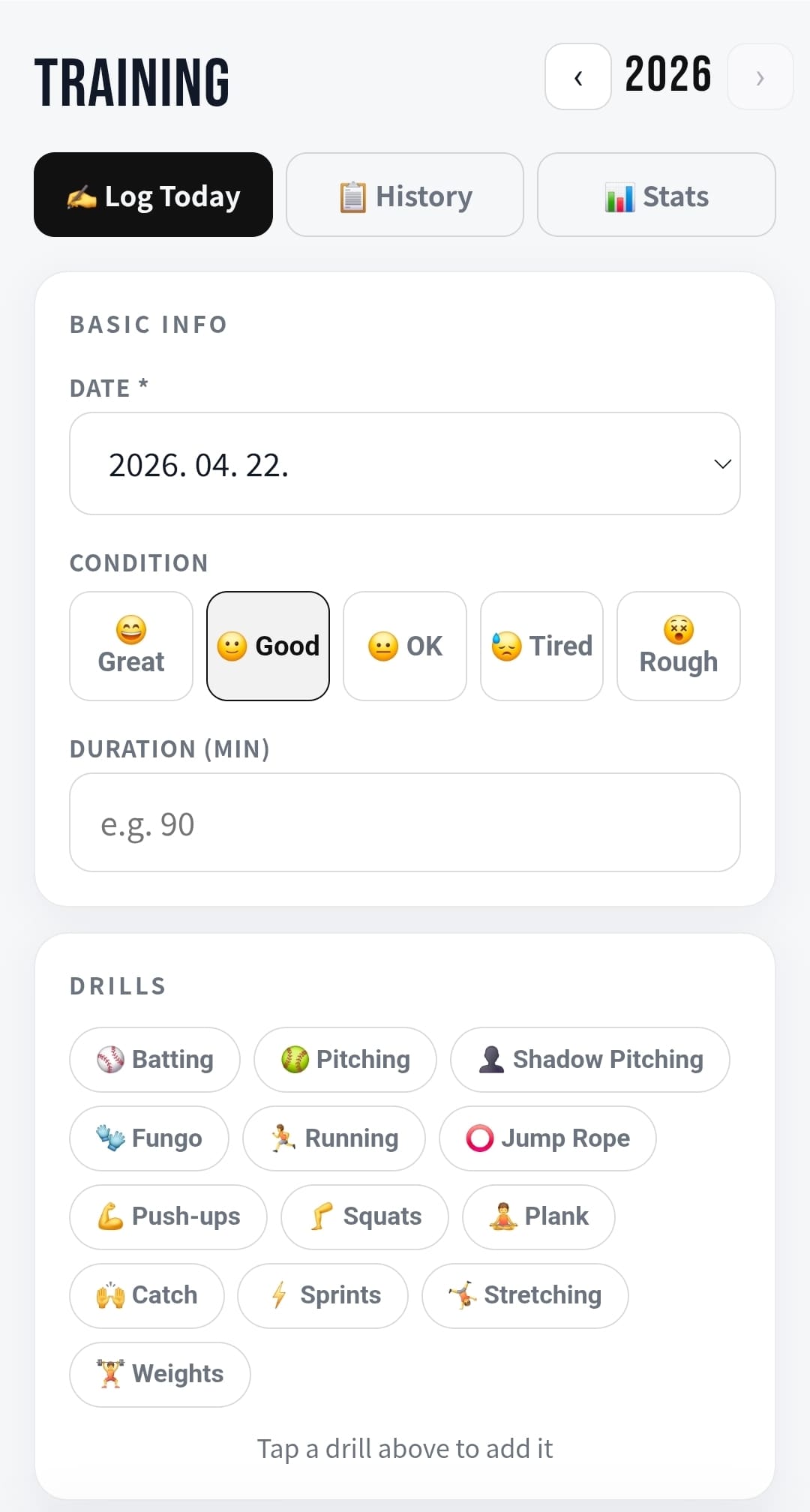
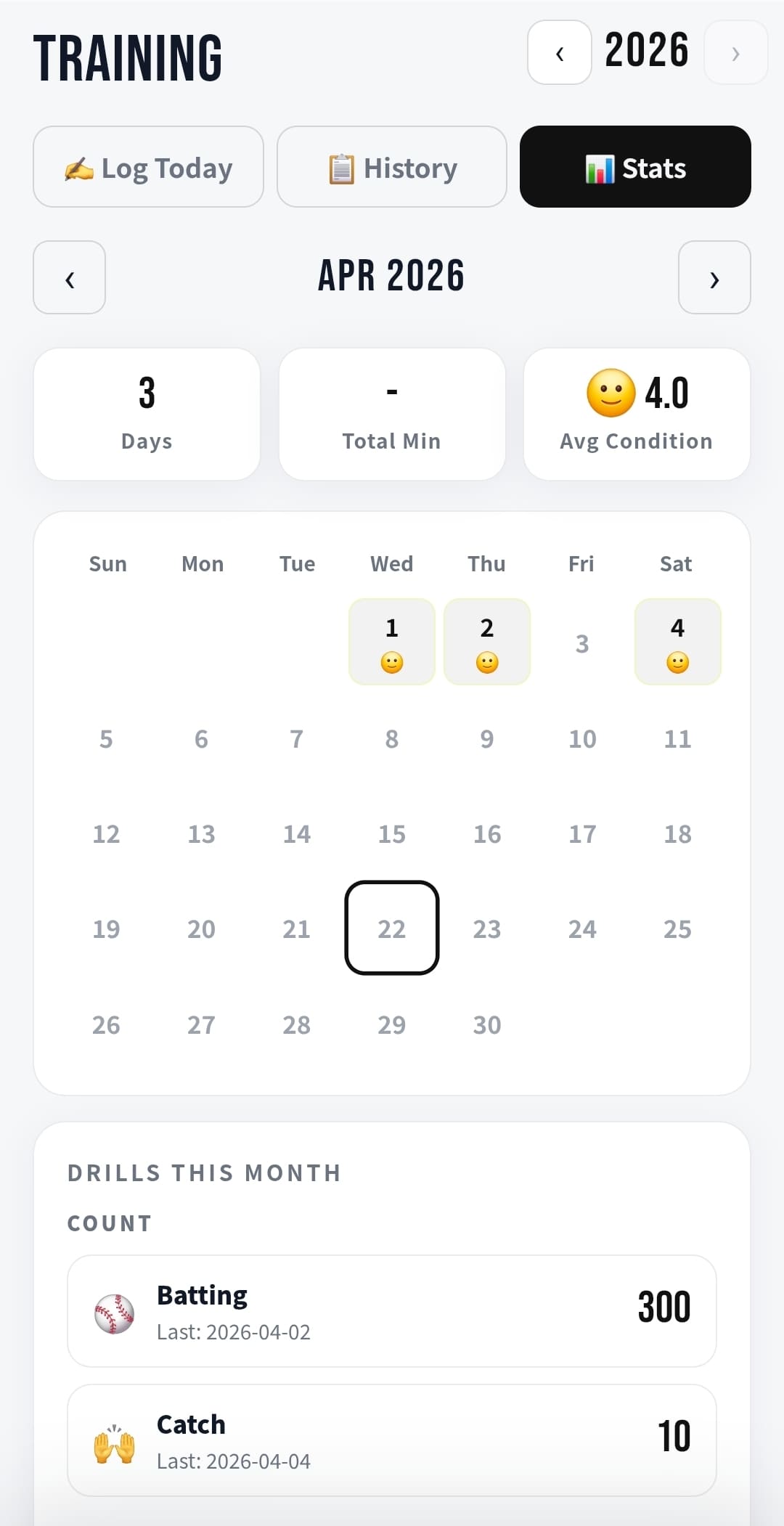
Log daily training, track drills, review monthly activity, and keep your routine consistent.

✍️
Log TodayAdd drills,
condition, notes.
πŸ“…
Monthly StatsCalendar view
and summaries.
πŸ’ͺ
Drill SummaryReview drill count
and repetition.
Training log
Training Log
Training stats
Training Stats
4

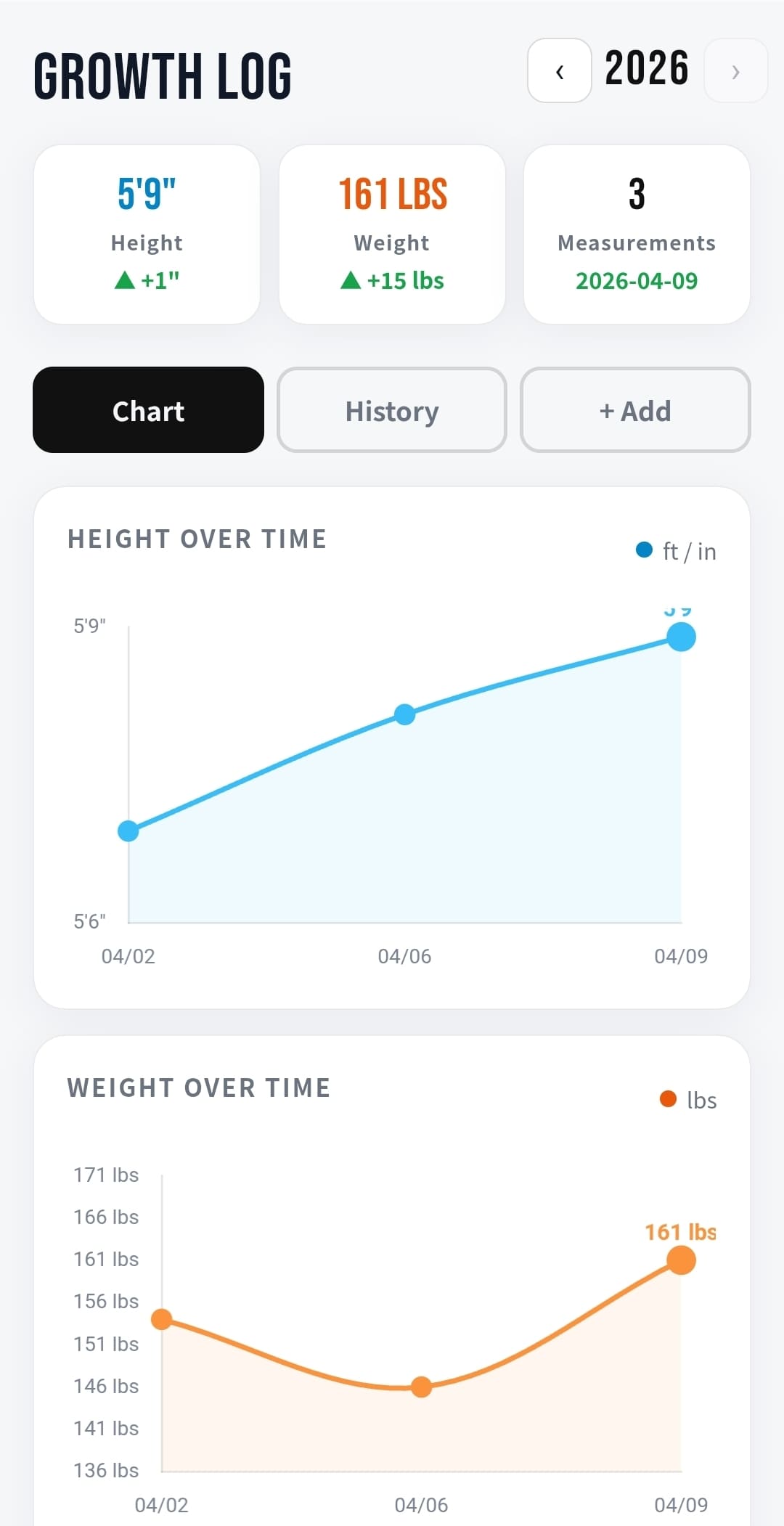
Track growth over time

Measure height and weight changes over time and view progress visually.

πŸ“ˆ
HeightTrack growth
over time.
βš–οΈ
WeightKeep changes
organized.
πŸ…
ProgressReview records
visually.
Growth log
Growth Log
5

Start with this flow

Follow this order to keep your season records clear, connected, and easy to review later.

1
Create a player profileSet up the player first so every record connects to the right season.
2
Add or select a team gameCreate the game once, then enter only your player’s participation record.
3
Enter batting and pitchingAdd plate appearances, pitching line, fielding, notes, and an optional video URL.
4
Review reports and statsUse reports for game detail, stats for monthly trends, and analysis for deeper review.
6

Player questions

Quick answers to the most common questions players and parents have when getting started.

A team game is the shared game information such as date, opponent, competition, venue, and score. Your player record is entered separately under that game.
Highlighted games usually mean you already entered your player’s participation record, so you can quickly tell which games are complete and which still need input.
Yes. You can reopen a saved game and update batting, pitching, fielding, notes, or video links whenever you need to correct or add details.
No. If your player did not pitch, you can leave pitching fields empty and still save the rest of the game record.
1

Review players with permission

Coaches can view player records only when access has been granted. This keeps player data protected.

πŸ”‘
AccessPermission-based
coach view.
πŸ‘₯
PlayersReview allowed
players only.
πŸ›‘οΈ
ProtectedNo access means
no detail view.
Coach dashboard
Coach Dashboard
2

Open games and lineups

Expand team games, check the lineup, and move into player stats when access is allowed.

πŸ“‹
Game ListCheck team
games.
⚾
LineupView batting order
and position.
πŸ“Š
StatsOpen player
stats detail.
Coach games
Coach Games
3

Check player performance

Review batting, pitching, fielding, and game-by-game records for each permitted player.

🏏
BattingAVG, OBP,
OPS, QAB.
🎯
PitchingERA, WHIP,
K/BB.
🧒
Game LogsReview each
game record.
Coach player stats
Player Stats
4

Coach workflow

Use a simple review flow to move from roster, to game, to player detail without losing context.

1
Select your teamOpen the coach team you manage and review the current roster first.
2
Open a recent gameCheck the game result, lineup, and player usage from the accordion game list.
3
Enter player detail viewMove into the player stat page when permission is granted for deeper review.
4
Review trends and communicateUse season summaries and game logs to give focused feedback to players and parents.
5

Coach questions

Common questions for coaches using the team and player review screens.

Player detail screens open only when that player has granted coach access. Without permission, detail data should remain protected.
Yes. Team game and lineup views can still be used for team-level review, while player-level detail remains permission-based.
Start with recent games, then open lineup and usage, and finally move into player summaries for the athletes you are authorized to review.
This guide is focused on review flow. Edit permissions depend on the screen and the current permission design in your coach workflow.

Ready to build your season?

Start recording games, track your training, and keep every improvement in one place.